 Placement (not available with the Free Viewer and in EXE files)
Use the Placement tool to place and align your models.
The Placement tool is located in Tools group of the 3D-Mode tab.

 Place Active Model

Select model
Only the active, red colored model will be positioned.
To select a model, do one of the following:
- Click << or >> until the wanted model is selected.
- Click
 , and click a model in the display.
From
Use the From drop down list to choose the start reference to be used with the active model.
- Auto reference: Move the cursor across the active model, and possible references are highlighted in blue. Click to select a reference. You can choose from points, centers of circles, planes, edges and lines.
- Model center: Use the center of the active model as start reference.
- Model min: Use the minimal X,Y,Z - coordinate of the active model as start reference.
- Model max: Use the maximal X,Y,Z - coordinate of the active model as start reference.
To
Use the To drop down list to choose the target reference for the active model.
- Auto reference: Move the cursor across the models, and possible references are highlighted in blue. Click to select a reference. You can choose from points, centers of circles, and planes.
- Model center: Use the center of a model as target reference.
- Model min: Use the minimal X,Y,Z - coordinate of a model as target reference.
- Model max: Use the maximal X,Y,Z - coordinate of a model as target reference.
- XY-plane: Use the XY-plane of the coordinate system as target reference.
- XZ-plane: Use the XZ-plane of the coordinate system as target reference.
- YZ-plane: Use the YZ-plane of the coordinate system as target reference.
- X-axis: Use the X-axis of the coordinate system as target references.
- Y-axis: Use the Y-axis of the coordinate system as target references.
- Z-axis: Use the Z-axis of the coordinate system as target references.
- Origin: Use the origin (0,0,0) of the coordinate system will be set as target reference.
When From and To are defined, you may align and/or translate the active model.
Align
Click on Align to position the active model. The Align button is only activated if the alignment is possible with the target references that are selected. Use the options Same and Opposite to set whether the alignment of the references will be in the same or the opposite direction. Axes, edges, and lines will be aligned perpendicular to a plane by default. The Parallel option activates parallel alignment.
Move
Click on Move to reposition the active model. The move button is only activated if the move is possible with the target references that are selected. Use the All Axis, x, y, z option to determine which coordinates of the active model are affected.
Transform
To freely place the model, click  Show Drag'n Trans Tool. Within the Drag'n Trans tool click
  Move or
  Rotate to move or rotate the active model simply by dragging it while pressing the left mouse button.
Further information can be found in the chapter 3D-Mode > 3D-Tools > Drag'n Trans.
To use exact values when repositioning or rotating the active model, use Move or Rotate. To Scale or Mirror the model, use  Scale or
  Mirror.
Further information can be found in the chapter 3D-Mode > 3D-Tools > Move, Rotate, Scale, Mirror.
 Note
Note
To Auto reference and pick centers of circles, it can be necessary to zoom close onto the wanted arc.
 Tip
Tip
First align models, and then move them.
 Auto Arrange Models
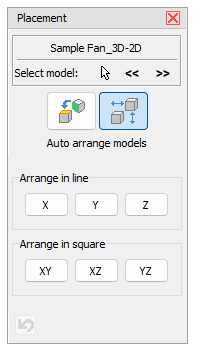
Arrange in line
Click X,Y, or Z to arrange all models in a row along the corresponding axis.
Arrange in square
Click XY, XZ, or YZ arrange all models according to the corresponding plane. The goal is to arrange the models in the smallest square possible; however this depends on the number of models, as well as their size and form.