 Painter
Use the Painter tool to change the color of models, parts, surfaces, curves and PMI.
The Painter tool is located in the Tools group of the 3D-Mode tab.
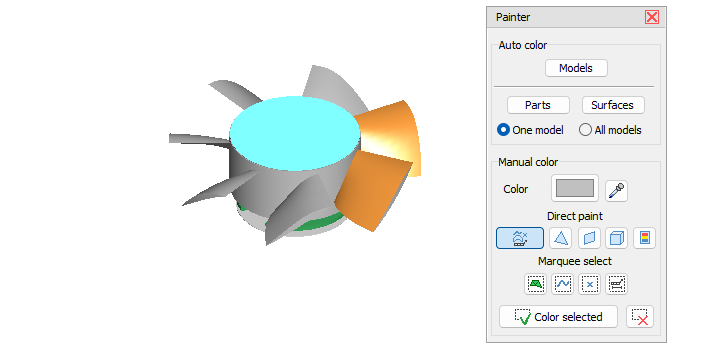

Automatic Color
Models
Automatically assign different colors to all models.
Parts
Automatically assign different colors to all parts. Select the One model option to color the parts of a specific model. Select the All models option to color the parts of all models.
Surfaces
Automatically assign different colors to all faces. Select the One model option to color the faces of a specific model. Select the All models option to color the faces of all models.
Manual Color
Color
To set the paint color:
- Click the Current paint color button and pick a color from the color palette.
- Or click
 Pick a color from model and then click on a color on the model.
Single object select
The following selection modes are available: Change color of surfaces, curves, reference points, or PMI.
 Change color of a single triangle
 Change color of a plane surface
 Change color of connected triangles
 Change color of connected triangles in the same color.
Move the mouse pointer over the model. Details to the selection mode details of the model will be highlighted in bright blue according to the selection mode. Click to change the color of the highlighted elements.
Marquee select
The following marquee selection modes are available: Marquee select curves.
 Marquee select triangles.
 Marquee select reference points.
 Marquee select PMI.
Click into the display, hold the mouse button and drag the selection rectangle over the wanted elements. All elements that are completely within the selection rectangle will be selected and highlighted in bright blue. To change the color of the selected elements click  Color selected. To remove the selection without changing the color click
  Reset selection.
 Note
Note
The marquee selection modes will not only select the visible elements but also all hidden elements behind them.