 Create Reference Point
Use the Create Reference Point to to create a point in the coordinate system, e.g. as reference for dimensions.
The Create Reference Point tool is located in  More in the Tools group of the 3D-Mode tab.
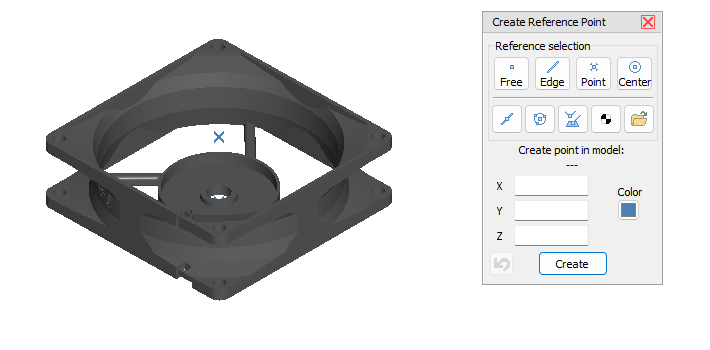
 Apply xyz Coordinate of the Model
Create Reference Point
Click the Create Reference Point tool in More tools in the Toolbox group of the 3D-Mode tab.
Select a reference to get X, Y, and Z coordinates of model or enter the coordinates for the reference point directly in the X, Y and Z field.
 Free point on surface
 Point on edge
 Vertex
 Center (Center of circles)
 Edge center
 Center (Center of circle)
Select three points to determine a circle and use its center as a reference.
 Intersection of two edges or edge and plane
Select two edges or one edge and a plane and use their intersection as a reference.
 Center of mass
Use the center of mass of a model as a reference.
 Load
Load
To load coordinates of one or more reference points from a file (*.txt or *.xyz) click Load.
Move the cursor across the model and possible reference points will be shown in light blue.
Click to select a point.
The applicable coordinates of the point are applied to accordant input field.
Color
To select a color for the reference point, click the Point color button and pick a color from the color palette.
Create
Create the reference point.
 Undo
Undo
Undo the last action.
Structure of a Point file (*.txt or *.xyz)
Point files are simple text files that can be easily edited with an editor.
3D-Tool point files are structured as follows:
- Individual points are separated by a line break.
- A point is specified with 3 values for the coordinates, each separated by spaces.
- # signals a comment line
Example:
# Example for a point
1.0 2.0 3.0