 Report (not available with the Free Viewer and in EXE files)
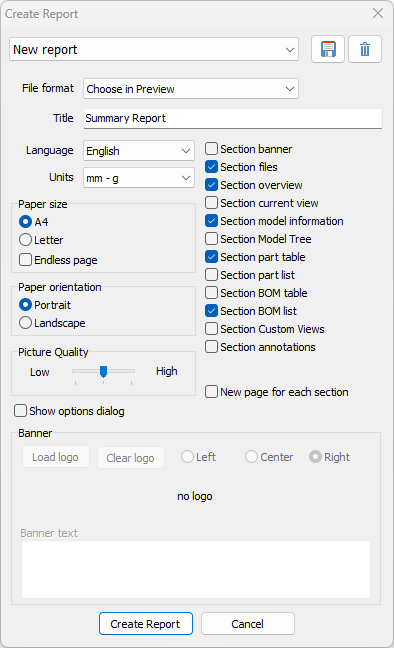
Use Report to generate details reports with details such as model information, Bill of Materials, and an overview of Custom Views as PDF, RTF, HTML and JPG/BMP.
The  Report is located in the Report group of the 3D-Mode tab.
 Load, Save and Delete Customized Report
File format
From the drop down list, select the file format in which the Report will be output:
- Choose in Previews: save as PDF, RTF, HTML, JPG/BMP
- RTF
- HTML
Title
Specify a name for the Report.
Language
Select a language for the Report.
Paper size
Choose between DIN A4 and US Letter as paper size.
Endless page
Optionally creates the Report as one continuous page.
Paper orientation
Select the paper orientation (portrait or landscape) in which the report should be created.
Picture quality
Sets the picture quality for preview images in the Report.
Select sections included in the report
Check the topic sections to be included in the report for the loaded models:
- Section banner: Displays the loaded logo and, if specified, the banner text.
- Section files: Shows the file path along with the file name.
- Section overview: Displays the main view and the default views of the model.
- Section current view: Displays the current view of the model.
- Section model information: Provides a summary of the main properties of the model, including dimensions, volume, surface, together with an image of the model.
- Section Model Tree: Displays the model tree with the parts and assemblies structure.
- Section part table: Displays all parts in a tabular overview.
- Section part list: Displays the part information along with images.
- Section BOM table: Displays the Bill of Materials in a tabular overview with information on quantity, dimensions, volume, and surface area.
- Section BOM list: Displays the Bill of Material along with images.
- Section Custom Views: Displays all Custom Views along with a preview image.
- Section s: For each dimension and markup, display a preview image of the parts to which the dimension/markup refers, as well as the dimension/markup itself.
New page for each section
Inserts a page break after each topic section.
Show options dialog
The options dialog is displayed before creating the report for PDF, RTF and HTML file format. [More Information]
Banner
To customize the banner, activate the Banner topic section
- Load logo
Load a logo and display it in the Report - Clear logo
Removes the loaded logo. - Left, Center, Right
The logo can either be displayed on the left with text on the right or vise versa. Alternatively, it can also be placed in the center without the banner text being displayed. - Banner text
Add a text and place it either to the left or right of the logo, depending on it orientation.
Load, Save and Delete Customized Report
All settings can be saved as a customized report to be able to create further reports with these settings.
Load
Select the customized report from the dropdown list to access its settings. To create a report using the settings you last selected, choose Last created report.
Click  below the
  Report tool to create a report directly without displaying the Create Report dialog window.
 Save
Save
Save the settings as a customized report.
 Delete
Delete the selected customized report.