 Publish 3D-PDF (not available with the Free Viewer and EXE files)
Publish all loaded 3D models as 3D-PDF file. 3D-PDF files can be sent easily by e-mail and viewed with the Adobe Acrobat Reader.
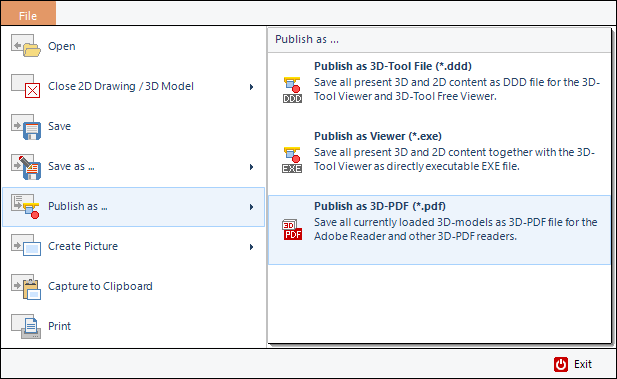
To publish a PDF file open the FILE tab, go to  Publish as … and select Publish as 3D-PDF (*.pdf); or click on in the Quick Access Toolbar.
 Characteristics of 3D-PDF Files
Settings When Publishing a 3D-PDF File
Characteristics of 3D-PDF Files
3D-PDF files contain:
- The 3D models including PMI and 3D dimensions/markups
3D models can be published as a 3D-PDF file. The recipient needs the Adobe Acrobat Reader (Version 7.0.7 or higher) to view the file.
When publishing 3D-PDF files only the geometry and structure of the 3D models including PMI will be published with notices and dimensions but not the Custom Views and animations created with 3D-Tool. Additionally, no measurement and analysis operations will be available.
 Note
Note
3D-PDF files contain 3D dimension/markups, but no background images or text.
Settings When Publishing a 3D-PDF File
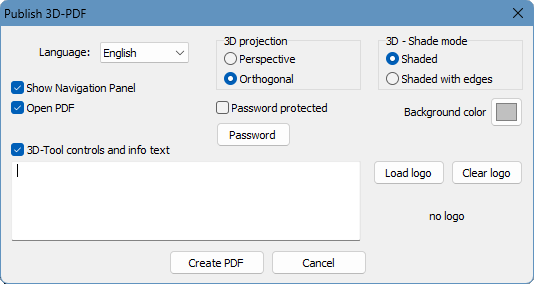
Language
Select the language of the 3D-Tool controls in the PDF file (German or English).
3D projection
Designate whether the model will be displayed orthogonal or in perspective, when the 3D-PDF file is opened.
3D - Shade mode
Designate whether the model will be displayed shaded or shaded with edges, when the 3D-PDF file is opened.
Show Navigation Panel
Activate the Navigation Panel in the PDF document, which shows the model tree (the part structure of a model), as well as some default views.
Open PDF
Open the PDF document right after it was created.
Password protected
Protect the 3D-PDF file with a password against unauthorized use.
Password
Enter a password to protect the 3D-PDF file.
Background color
Designate the background color of the 3D-PDF.
3D-Tool controls and info text
Activate additional 3D-Tool controls and info text in the PDF document that make it possible to:
- Save and load views.
- Change the color of parts and assemblies.
- Explode assemblies.
- Display an info text, if one has been added.
- Display a company logo, if it has been loaded.
Load logo
Add a company logo, that will be displayed in the 3D-PDF file.
Clear logo
Clear the loaded logo.
Note
Unzipping password protected 3D-Tool ZIP archives requires archive software supporting the AES 256 encryption standard. The default Windows ZIP feature does not support this encryption, so that third party software is required.