Adjust And Delete Background Images And Texts
Background pictures and texts can be moved. The text box color and text size of background texts can be changed.
To adjust background images and text, activate the  Measure/Markup tool in the Tools group.
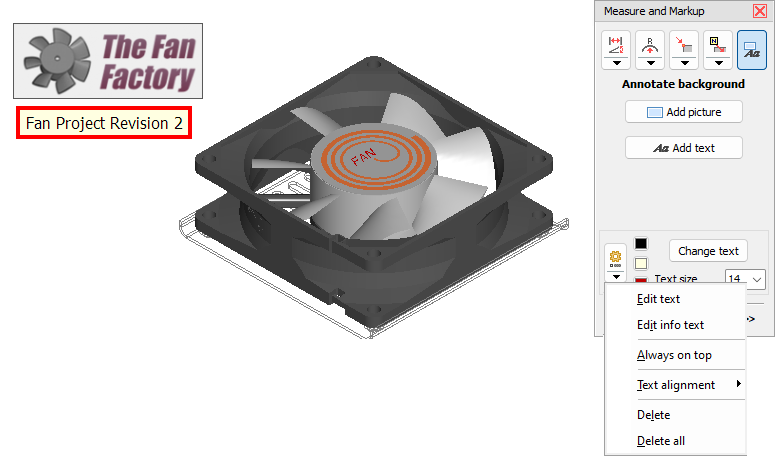
 Move Background Images and Texts
Change Attributes Of Background Texts
Delete Background Images And Texts
Move Background Images And Texts
Click the  Add background image or text button.
Move background images and texts by dragging them while pressing the left mouse button.
 Note
Note
The position of background pictures and texts, measured in pixels, is in reference to the upper left corner of the display. The position of background pictures and text changes with different display resolutions, hence positioning them on the top left is favorable.
Change Attributes Of Background Texts
Click the Add background image or text button.
Click a background text to select it and then do one of the following:
- Change text, text color and text height by clicking Change text.
- Change only the Text height by choosing a value from the drop down list.
- Change the color of the text and the text box by clicking on the button for color selection.
- Add additional text for background texts by clicking
 and selecting Edit info text.
Notes
- Color changes will not be visible until the background text has been deselected.
- The default settings of all new dimensions/markups can be designated through:
Options tab > Preferences group > Preferences > 3D-s.
Delete Background Images And Texts
Click the Add background image or text button.
Click a background image or text to select it.
To delete the selection, do one of the following:
- Press [Del] on the keyboard.
- Or click on the Change dimension/markup button and select Delete.
- Delete all deletes all dimensions/markups and all background pictures and texts.