Adjust And Delete Dimensions/Markups
Change the position, color, and size of dimensions and markups. Delete dimensions and markups that are no longer required
To adjust dimensions and markups, activate the  Measure/Markup tool in the Tools group.

Move Dimensions/Markups
Movable elements of a dimension/markup will be highlighted in light blue under the cursor. Move the following elements by dragging them while pressing the left mouse button:
- Text box of any dimension/markup
- The points of reference of distance dimensions if on an edge or a plane
- The points of reference of notes
Change Of Dimensions/Markups
Select a dimension/markup. To do so, click on the text box or use the << and >> button near Select .
- Change the decimals of dimensions by choosing a value from the drop down list.
- Change the text size of dimensions/markups by choosing a value from the drop down list.
- Change the text of notes by clicking on the Change text button.
- Text color is the color of the text.
- Background color is the color of the text box.
- Line color is the color of the carrying lines.
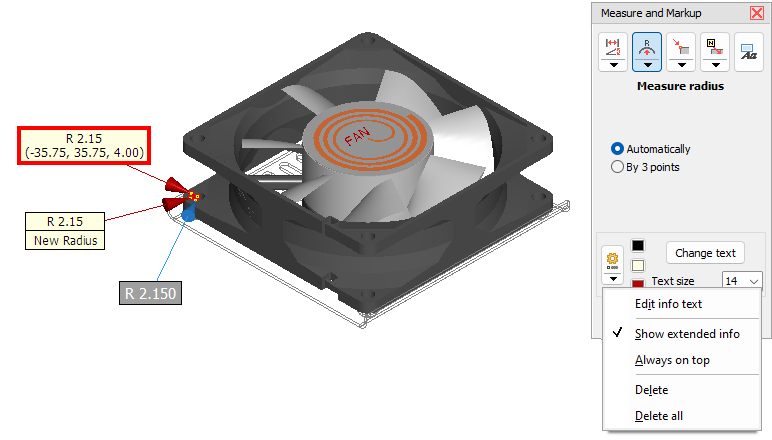
Use the  Change dimensions/markup button to change further attributes of a dimension/markup:
- Edit info text allows adding additional text to dimensions/markups.
- Stay on top displays a dimension/markup always in front of the model. This prevents the dimension/markup to be hidden by the model.
- Free move (distance dimensions between planes only)
Allows to move the text box and carrying lines of a distance dimensions to any position in the 3D space, as long as the measuring references are planes. - Show extended info (for distance dimensions, radius, and diameter)
Shows additionally the distances along the X, Y, and Z-axis for distance dimensions. Shows additionally the X, Y, and Z-coordinate of the center of the circle for radii and diameters.
 Tip
Tip
Change the attributes of dimensions/markups through the context menu by just right-clicking the text box of a dimension/markup.
 Notes
Notes
- Color changes will not be visible until the dimension/markup has been deselected.
- The default settings of all new dimensions/markups can be designated through:
Options tab > Preferences group > Preferences > 3D-s.
Delete Dimensions/Markups
To select a dimension/markup to be deleted, do one of the following:.
- Click on the text box of the wanted Dimension/Markup.
- Use the << and >> buttons near Select .
To delete the selected dimension/markup, do one of the following:
- Press [Del] on the keyboard.
- Or click on the Change dimension/markup button and select Delete.
- Delete all deletes all dimensions/markups and all background pictures and texts.