Hide and Show Measures and Markups
Hide and show Measures and Markups individually.
To show and hide 3D dimensions and markups, click  below the Measure and Markup tool
  .
.
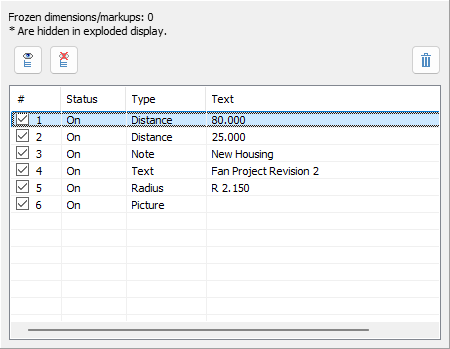
To hide and show Measures and Markups individually, click the checkbox.
 Show all dimensions and markups
Show all 3D dimensions and markups.
 Hide all dimensions and markups
Hide all 3D dimensions and markups.
 Delete marked dimensions and markups
Delete selected 3D dimensions/markups marked in the list
 Note
Note
To select multiple dimensions/markups in the list, click one and then press [Ctrl] while clicking additional parts. To select a range of parts in the Model Tree, click a part and then press [Shift] while clicking another part. This will select the clicked dimensions and markups and all in between.
Status
The status indicated the state of the dimensions/markups in the current display:
On The dimensions/markups is shown in the display.
Off The dimensions/markups is hidden in the display.
Frozen The dimension is not shown in the exploded view because it is between parts that are exploded in the current display.
Clipped The dimensions/markups is not visible in the display, because it lies in the clipped area.
Type
Specifies the type of the dimension or markup.
Content
Specifies the value of the dimension or markup.
 Tip
Tip
Save the state of the dimensions and markups in the Custom Views.