Add Markups, Text and Pictures (2D)
Activate Annotate to create 2D markups. Use the second button to create various redline markups and insert pictures and texts.
To add markups, text, and pictures, click the  Measure/Markup tool in the Tools group.
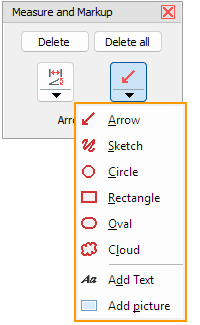
In the Measure and Markup tool, click  Arrow to add an arrow markup, or click the little black arrow in the button to select another function.
 Adjust and Delete Markups, Text and Pictures
Arrow
Add an arrow. Click to select the starting point, hold down the mouse button, and move the arrow to the end point.
 Sketch
Add a sketch. Click on the drawing, hold down the mouse button, and draw with the cursor.
 Circle
Add a circle. Click into the drawing, hold down the mouse button, and drag the circle to the wanted size.
 Note
Note
Actually, an ellipse is created and the circle only constitutes the ideal case of uniformly dragging the ellipse in the x- and y-direction.
 Rectangle
Add a rectangle. Click into the drawing, hold down the mouse button, and drag the rectangle to the wanted size.
 Oval
Oval
Add an oval. Click into the drawing, hold down the mouse button, and drag the oval to the wanted size.
 Cloud
Cloud
Add a cloud. Click into the drawing, hold down the mouse button, and drag the cloud to the wanted size.
 Add Text
Add a text. Click into the drawing. Choose the text height and color, enter the text, and click OK.
 Add Picture
Add a PNG, JPG or BMP picture. Click into the drawing, hold down the mouse button, and drag the rectangle to the wanted size. Release the mouse button, and load an image.
Adjust and Delete Markups, Text and Pictures
Move markups, text and pictures.
Click a markup, text, or edge of a picture, hold down the mouse button, and move the object into the wanted position. For arrow markups, you can also move the starting and end point.
Scale markups and pictures
Move the cursor onto the line of a markup or the edge of a picture. Press and hold [Ctrl] and the left mouse button. Move the mouse to scale the object.
Change the lines of markups
Double-click a markup. Change the thickness and color of the line. For arrow markups, you can also change the length of the arrow head.
Change text
Double-click a text. Change text height and color or enter new text.
Replace pictures
Double-click the edge of a picture, and select a new picture to be loaded.
Delete markups, text and pictures
- Right click a markup, a text or the edge of a picture. Select Delete.
- Move the cursor on a markup, text or edge of a picture. Press [Del] on the keyboard.
- Click the Delete button in the right info panel, and then click a markup, text or the edge of a picture.
- To delete all 2D dimensions and/or all 2D markups (redline markups, texts, pictures), click the Delete All button in the right info panel.
Note
If common text heights appear extremely small or large, the units of the drawing do not correspond to the 3D-Tool default units.
Options tab > Preferences group > Preferences > Common.