Add Dimensions (2D)
Measure distances, angle, radii and the length of lines.
To add dimensions, click the  Measure/Markup tool in the Tools group.
In the Measure and Markup tool, click  Distance/Angle to measure distances and angles, or click the little black arrow in the button to select another measure function.
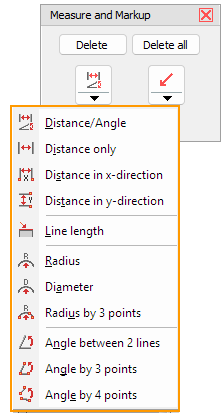

Distance / Angle
Automatically measure the distance or the angle between two references.
Move the cursor over the drawing. Elements of the drawing that can be used as references for measuring will be highlighted in blue, but you can also choose any arbitrary points.
Select two references by clicking on them.
Move the new dimension into the desired position, and click to fix it.
In the following dialog, adjust the properties of the dimension, and click OK.
The type and position of the references determines whether the angle or position is measured.
- Between two non-parallel lines the angle is measured.
- Between two parallel lines the distance is measured.
- Between two points the distance is measured.
- Between a point and a line the distance is measured.
 Note
Note
Press [Esc] to cancel the operation.
 Distance
Measure the distance between two references.
Move the cursor over the drawing. Elements of the drawing that can be used as references for measuring will be highlighted in blue, but you can also choose any arbitrary points.
Select two references by clicking on them.
Move the new dimension into the desired position, and click to fix it.
In the following dialog, adjust the properties of the dimension, and click OK.
The distance can be measured:
- Between two points.
- Between a point and a line.
- Between two parallel lines.
Note
Press [Esc] to cancel the operation.
 Distance In X- And
  Y-Direction
Measure the distances between two references in the direction of x or y.
Move the cursor over the drawing. Elements of the drawing that can be used as references for measuring will be highlighted in blue, but you can also choose any arbitrary points.
Select two references by clicking on them.
Move the new dimension into the desired position, and click to fix it.
In the following dialog, adjust the properties of the dimension, and click OK.
The distance can be measured:
- Between two points.
- Between a point and a line.
- Between two parallel lines.
Note
Press [Esc] to cancel the operation.
 Line Length
Measure the length of a line.
Move the cursor over the drawing. Lines that can be used as references for measuring will be highlighted in blue.
Select a line by clicking on it.
Move the new dimension into the wanted position, and click to fix it.
In the following dialog, adjust the properties of the dimension, and click OK.
Note
Press [Esc] to cancel the operation.
 Radius
Measure the radius of a circle.
Move the cursor over the drawing. Circles that can be used as references for measuring will be highlighted in blue.
Select a circle by clicking on it.
Move the new dimension into the desired position, and click to fix it.
In the following dialog, adjust the properties of the dimension, and click OK.
Notes
- Press [Esc] to cancel the operation.
- If a circle cannot be selected, use
 Radius by 3 points.
 Diameter
Measure the diameter of a circles.
Move the cursor over the drawing. Circles that can be used as references for measuring will be highlighted in blue.
Select a circle by clicking on it.
Move the new dimension into the desired position, and click to fix it.
In the following dialog, adjust the properties of the dimension, and click OK.
Notes
- Press [Esc] to cancel the operation.
- If a circle cannot be selected, use Radius by 3 points.
Radius by 3 Points
Measure the radius of a circle defined by three points.
Move the cursor over the drawing. Points of the drawing that can be used as references for measuring will be highlighted in blue, but you can also choose any points.
Select three points by clicking on them.
Move the new dimension into the desired position, and click to fix it.
In the following dialog, adjust the properties of the dimension and click OK.
Note
Press [Esc] to cancel the operation.
 Angle Between Two Lines
Measure the angle between two lines.
Move the cursor over the drawing. Lines that can be used as references for measuring will be highlighted in blue.
Select two lines by clicking on them.
Move the new dimension into the desired position, and click to fix it.
In the following dialog, adjust the properties of the dimension, and click OK.
Notes
Press [Esc] to cancel the operation.
 Angle By 3 Points
Measure an angle defined by three points.
Move the cursor over the drawing. Points of the drawing that can be used as references for measuring will be highlighted in blue, but you can also choose any arbitrary points.
Select three points, of which the second point defines the angular point, by clicking on them.
Move the new dimension into the desired position, and click to fix it.
In the following dialog, adjust the properties of the dimension, and click OK.
Note
Press [Esc] to cancel the operation.
 Angle By 4 Points
Measure an angle defined by four points.
Move the cursor over the drawing. Points of the drawing that can be used as references for measuring will be highlighted in blue, but you can also choose any arbitrary points.
Select four points, of which point 1 and 2 define the first arm and point 3 and 4 the second arm of the angle, by mouse click.
Move the new dimension into the wanted position, and click to fix it.
In the following dialog, adjust the properties of the dimension, and click OK.
Note
Press [Esc] to cancel the operation.
Adjust And Delete Dimensions
Move dimensions
Click the text of a dimension, hold down the mouse button, and move the dimension into the wanted position. Angle dimensions can be placed in any quadrant of the angle.
Change the properties of dimensions
Double-click the text of a dimension.
- Scale: Choose the scale of the drawing to adjust the measured value.
- Text field: Shows the text/value of the dimension. You can enter a custom text, but this will prevent the value from being scaled.
- Text: Change the text height and color.
- Line: Change the thickness and color of the lines.
- Arrow: Select an arrow head and change its length.
- Tolerance: Enter tolerance values for the dimension.
Note
If common text heights appear extremely small or large, the units of the drawing do not correspond to the 3D-Tool default units.
Options tab > Preferences group > Preferences > Common.
Delete dimensions
To delete a dimension, do one of the following:
- Right-click the text of a dimension, and select Delete.
- Click the Delete button in the right info panel, and then click the text of a dimension.
- Move the cursor onto the text of a dimension, and press [Del] on the keyboard.
- To delete all 2D dimensions and/or all 2D markups (redline markups, texts, pictures), click the Delete all button in the right info panel.