 Hardware
Activate the hardware acceleration and adjust the zoom speed of the mouse wheel.
Options tab > Preferences group >  Preferences > Hardware.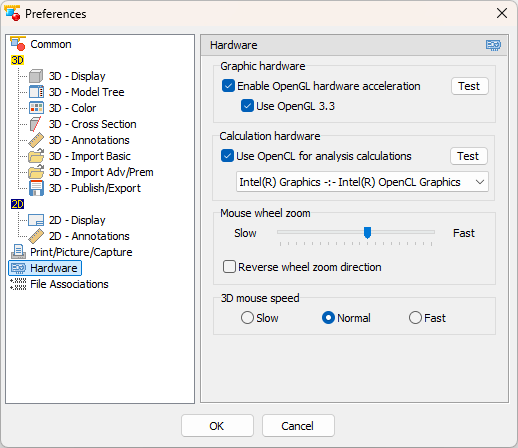
Graphic hardware
- Enable Hardware Acceleration (Default: Inactive)
Activate the OpenGL hardware acceleration of the graphics card at program start-up. In rare cases, problems may occur after the hardware acceleration is activated. - Enable OpenGL 3.3 (Default: Inactive)
When the hardware acceleration is enabled, the OpenGL 3.3 hardware acceleration of the graphics card can also be activated to optimize the display performance. In rare cases, after the activation some older graphic drivers may show incorrect shading or colors.
 Note
Note
When enabling the OpenGL 3.3 option for the first time, you can perform a short, one-minute test that tests the display performance of the graphics card. It is recommended that you perform this test to ensure that OpenGL 3.3 acceleration is working properly.
Calculation hardware
- Use OpenCL for analysis calculations (Default: Inactive)
OpenCL uses the graphics processing unit (GPU) and accelerates the calculations for collision analysis, undercut analysis and wall thickness analysis. This leads to increased performance and more efficient execution of complex analyses.
Note
When activating the OpenCL option for the first time, you can perform a short test to check the acceleration of the graphics processor (GPU). It is recommended to perform this test to ensure that the OpenCL acceleration is working properly.
Mouse wheel zoom
Set the speed of the zoom when using the scroll wheel.
- Reverse wheel zoom direction (Default: Inactive).
Reverses the direction of the mouse wheel for zooming in/out the view.
3D mouse speed
Set the speed of the 3D mouse
- Slow
- Normal
- Fast