 Property Editor (not available with the Free Viewer and in EXE files)
Use the Property Editor to change the name, color, and transparency of parts. Save your changes for models with the same parts.
The Property Editoris located in  More in the Tools group of the 3D-Mode tab.
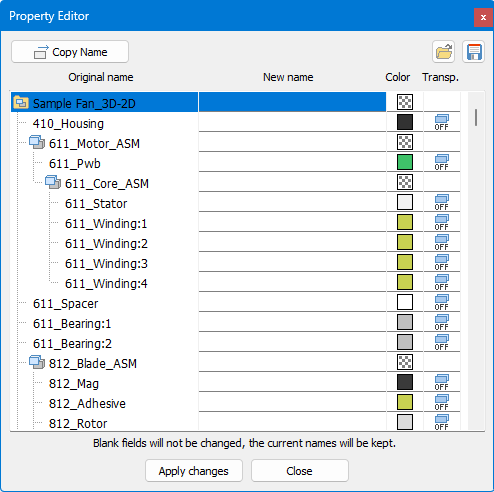

Edit Properties
The property table
The property table has 4 columns:
- Original name
The original names of assemblies and parts. Click an element to select it. - New name
Enter a new name for the selected element. - Color
Click the square to change the color of the selected element. Assemblies and multicolored parts (multicolored square) will be completely dyed in the new color. - Transp.
Click on the little blue square to turn /
/  the transparency of the selected element. This function is only available with parts.
 Copy original name to new name
Copy the name of the selected element to the New name column.
Apply changes
Click on Apply changes to apply the changes you have made.
Close
Leave the Property Editor.
 Notes
Notes
- Changes will not be applied until you click Apply changes.
- Elements without new names keep their original names.
Save And Load Properties
Save your changes for new versions of the model or models with the same part names. That way, you can load the changes to reapply them.
 Save
Save
Save the property table to a property file (*.pf).
 Load
Load
Load a property file (*.pf). Choose the properties (New name, Color, Transparency) to be transferred. Every element of the table whose original name matches a name in the property file will receive the properties stored in the file. You can continue to work on the table. Click on Apply changes to apply the changes you have made.
Notes
- If the property file contains more than one entry of the same original name, all elements with this name will be assigned the properties of the first entry, and all other entries will be ignored.
- For assemblies only the names will be transferred. However, all properties will be transferred for the parts of an assembly.
Characteristics of the property file (for experienced users)
The property file is a TAB separated text file that can be opened and edited with a text editor. Each entry starts with the original name of the element of which the properties are to be changed. The original name is followed, separated by a Tab, by the new name, color, transparency in the following syntax:
OriginalName $N:NewName $C:$Color $T:- or +
- Color stands for hexadecimal BGR color information in the form BBGGRR with a maximum of 6 characters.
- $T: Minus - means transparency off, Plus + means transparency on.
 Examples
611_Stator $N:Stator $C:$0000FF $T:+
Changes the name of the element 611_Stator to Stator, colors the element red and shows it transparent.
Properties that are not to be changed can be omitted:
611_Stator $C:$0099FF
Changes only the color for element 611_Stator.