Part Display
Hide and show the models, assemblies and parts selected on the Model Tree or change their graphical display.
The functions to show and hide parts and to change their graphical display are located in the right side panel above the Model Tree.
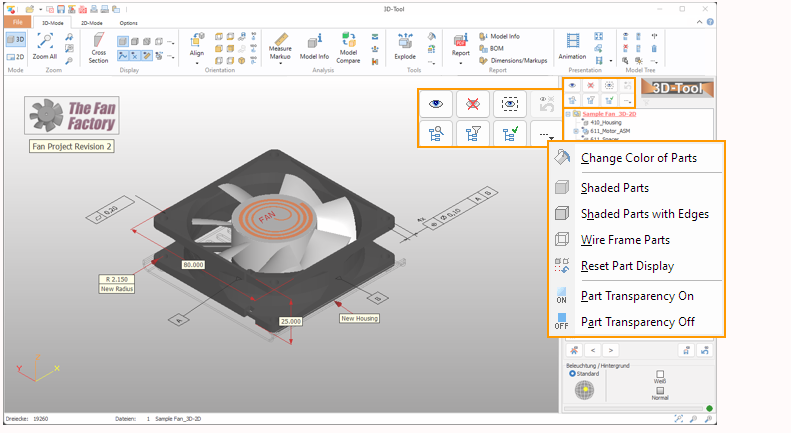
 Show Parts
Show the parts and assemblies selected in the Model Tree.
 Hide Parts
Hide the parts and assemblies selected in the Model Tree.
 Show Selection Only
Show the parts and assemblies selected in the Model Tree and hide all others.
 Undo Show/Hide
Undo the last show or hide action.
 Change Color of Parts
Change the color of the parts and assemblies selected in the Model Tree.
 Shaded Parts
Display the parts and assemblies selected in the Model Tree as shaded.
 Shaded Parts with Edges
Display the parts and assemblies selected in the Model Tree as shaded with black edges.
 Wire Frame Parts
Display the parts and assemblies selected in the Model Tree as wire frame.
 Reset Part Display
Reset the parts and assemblies selected in the Model Tree to the global shade mode as set in the Display group.
 Parts Transparency On
Display the parts and assemblies selected in the Model Tree transparent.
Adjust the transparency in the 3D-Tool preferences:
Options tab > Preferences group > Preferences > 3D-Color
 Parts Transparency Off
Display the parts and assemblies selected in the Model Tree solid.