Use the Model Tree
Use the Model Tree to show and hide models, assemblies, and parts and to select them for further steps.
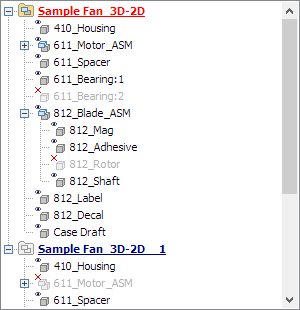

Elements of the Model Tree
The Model Tree can contain the following elements:
 Active model /
  Inactive model
 Assembly shown /
  Assembly hidden
 Part shown /
  Part hidden
- Click the icons of assemblies and parts to hide and show them.
- Click the
 or the
  icon in front of assemblies to expand or collapse them.
 - Double-click the names of models, assemblies, and parts to fit them in the display. Additionally, models will be activated for the Placement, Wall Thickness Analysis and Repair tool.
Move the cursor over the models, assemblies, and parts in the Model Tree to highlight them for a short time in the display. This can be deactivated in the preferences of 3D-Tool: Options tab > Preferences group > Preferences > Model Tree
Selection on the Model Tree
Single selection
Click the names of models, assemblies, and parts to select them.
Range selection
To select a range of parts in the Model Tree, click a part and then press [Shift] while clicking another part. This will select the clicked parts and all the parts in between.
Multiple selection
To select multiple parts in the Model Tree, click a part then press [Ctrl] while clicking additional parts.
Selection on the Model
Single selection
To select a part on the model, double-click the desired part or press the Shift key while clicking the part.
Multiple selection
To select multiple parts on the model, double-click a part on the model and then press [Shift] and [Ctrl] while clicking additional parts.
Marquee select
To marquee, select parts by a selection rectangle click on  Pick Part from the Model Tree group. In the display, press and hold the left mouse button and drag the selection rectangle over all wanted parts. Release the mouse button and all parts that are completely within the rectangle will be selected.