Touch Gestures
3D-Tool supports touchscreens. Additionally, special controls were added for some features to increase the usability with touchscreens.

3D-Mode
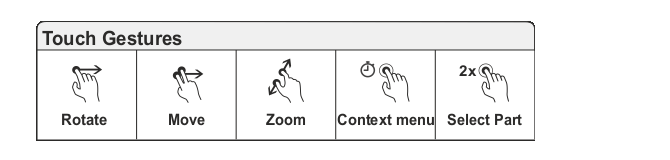
Rotate the model
Move your finger in the screen in the direction that the model should be rotated.
Move the model
Touch two points of the screen, and then move your fingers in the direction that the model should be moved.
Zoom in and out of the model
Touch two points of the screen, and then move your fingers towards each other, to zoom in. To zoom out, touch two points of the view, and then move your fingers away from each other.
Find a part of the model in the Model Tree
Double-tap a part of the model.
Access frequently needed functions
- Press your finger on a part of the model for approximately one second, and then release it.
- Press your finger on parts, assemblies, and models in the Model Tree for approximately one second, and then release it.
Show hidden parts
Press your finger into the background of the model for approximately one second, and then release it.
Fit assemblies and parts to the screen
Double-tap assemblies and parts in the Model Tree.
Activate a model
Double-tap the model in the Model Tree
Measure/Markup tool
- Select references for dimension/ by briefly tapping on the model, and confirm the selection each time with
 .
.
Possible references will be shown in light blue - Move a dimension/ by briefly tapping it, and then dragging it in the screen.
- Press your finger on a dimension/ for approximately one second, and then release it to change its properties.
Explode tool > Manual Explode Functions
To reset exploded parts, double-tap on the exploded part.
2D Mode
Move the drawing
Touch and drag your finger in the view.
Zoom in and out on the drawing
To zoom in, touch two points of the screen, and then move your fingers towards each other. To zoom in. To zoom out, touch two points of the view, and then move your fingers away from each other.
Annotate mode
- Double-tap a dimension/markup to change its properties.
- Press your finger on a dimension/markup for approximately one second, and then release it to call-up frequent functions.
Limitations
Some 3D-Tool functions use mouse-over/hover effects. Not all mouse-over effects are available on touchscreen. The usability of these functions may be more or less limited by the inaccuracy of the touch points.