Mouse Actions
How to use the mouse and the mouse buttons during 3D- and 2D-mode.

3D-Mode
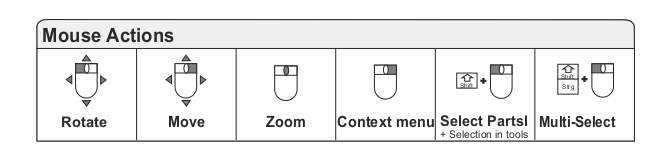
Rotate the model
Press the left mouse button, and move the mouse.
Move the model
Press the right mouse button, and move the mouse.
Zoom in and out of the model
- Scroll the mouse wheel.
- Press the scroll wheel / the middle mouse button, and move the mouse.
Find a part of the model in the Model Tree
- Double-click a part of the model.
- Press [Shift] and click a part of the model.
Access frequently needed functions
- Right-click a part of the model.
- Right-click parts, assemblies, and models in the Model Tree.
Show hidden parts
Right-click into the background of the model.
Fit assemblies and parts to the display
Double-click assemblies and parts in the Model Tree.
Select multiple parts on the model
Double-click the first part, press [Shift] and [Ctrl], and click more parts.
 Tip
Tip
To highlight the selected parts and assemblies in red, activate  Highlight Selection in 3D-Mode in the Model Tree group.
Activate a model
Double-click the model in the Model Tree
Measure/Markup tool
- Move a dimension/ by pressing the left mouse button.
- Right-click a dimension/ to change its properties.
Explode tool > Manual Explode Functions
Double-click an exploded part to reset it.
Tooling Analysis tool
To pick a custom reference plane, press [Shift], and click on the model.
Painter and Repair tool
To choose triangles, planes and surfaces, press [Shift], and click on the model.
2D Mode
Move the drawing
Press the right mouse button, and move the mouse.
Zoom in and out on the drawing
Scroll the mouse wheel.
Annotate mode
- Move a dimension/markup by pressing the left mouse button.
- Double-click a dimension/markup to change its properties.
- Right-click a dimension/markup to call-up frequent functions.
- To scale a markup, press [Ctrl], and scale the markup by pressing the left mouse button.
2D-Tool mode
- To select an element of the drawing or a 3D-Tool dimension/markup, hold down [Shift], and click on the element.
- To select multiple elements, hold down the [Shift] and marquee select the elements while pressing the left-mouse button.