 Publish EXE File (not available with the Free Viewer and EXE files)
Publish all loaded 3D models and 2D drawings together with the 3D-Tool Viewer as a directly executable EXE file. 3D-Tool EXE files run on any windows computer without further installations.
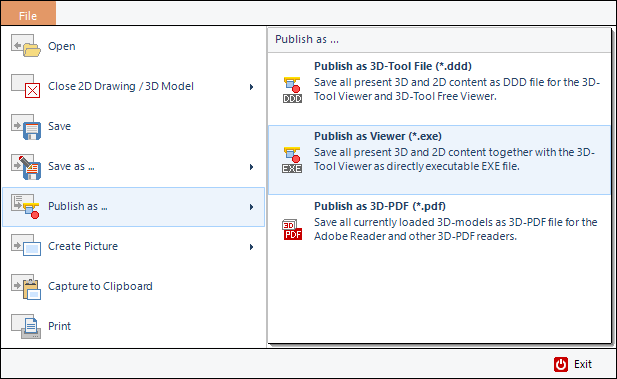
To publish an EXE file open the FILE tab, go to  Publish as … and select Publish as Viewer (*.exe); or click on in the Quick Access Toolbar.
 Settings When Publishing an EXE File
Options When Publishing an EXE File
Characteristics of EXE Files
3D-Tool EXE Files contain:
- The 3D-Tool Viewer.
- The 3D models including PMI, 3D-dimensions/markups and materials.
- The 2D drawings including 2D redline markups and 2D-dimensions.
- Custom Views and animations.
The EXE files can be passed on by e-mail or data carrier. The recipient can open the EXE files on any windows computer without further installations.
 Note
Note
3D-Tool EXE and DDD files published by a certain major version of 3D-Tool can only be opened by 3D-Tool or the 3D-Tool FreeViewer in this or a newer major version.
Settings When Publishing an EXE File
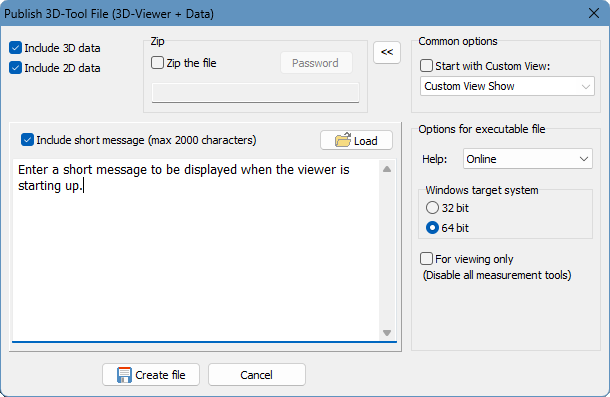
Include 3D data
Publish all currently loaded 3D-models.
Include 2D data
Publish all currently loaded 2D-drawings.
ZIP the file
Create the EXE file and pack it into a ZIP archive (*.zip).
Password
Enter a password to protect a ZIP archive against unauthorized use.
Include short message
Enter a message of up to 2000 characters that will appear at the start-up of the EXE file. Use  Load to load a text file (*.txt) as a message.
Note
Unzipping password protected 3D-Tool ZIP archives requires archive software supporting the AES 256 encryption standard. The default Windows ZIP feature does not support this encryption, so that third party software is required.
 Tip
Tip
Creating a ZIP archive will make sending the file easier since the file will not be blocked by firewalls or anti-virus software.
Options When Publishing an EXE File
Click the [>>] button to make further adjustments.
Common Options
- Start with: Start the EXE file with a Custom View Show, a certain Custom View, or an animation.
Option for executable file
- Viewer Help: Publish a help file with the viewer. The viewer is published without a help file by default, and starting the help of the viewer will open the 3D-Tool online help.
- Windows target system: Create a executable 32 bit or 64 bit viewer.
- View only: Hide all measuring tools in the Viewer, and prevent the EXE file from being re-imported into 3D-Tool. The EXE file can still be loaded with the Free Viewer, but the measurement tools will remain hidden.