3D-s (Notes)
Attach notes, model info notes, part info notes. cross section info note, or surface info notes on the model.
Click the  Measure/Markup tool in the Tools group. Click the
  Create Note button or click the little black arrow in the button to select another note function.
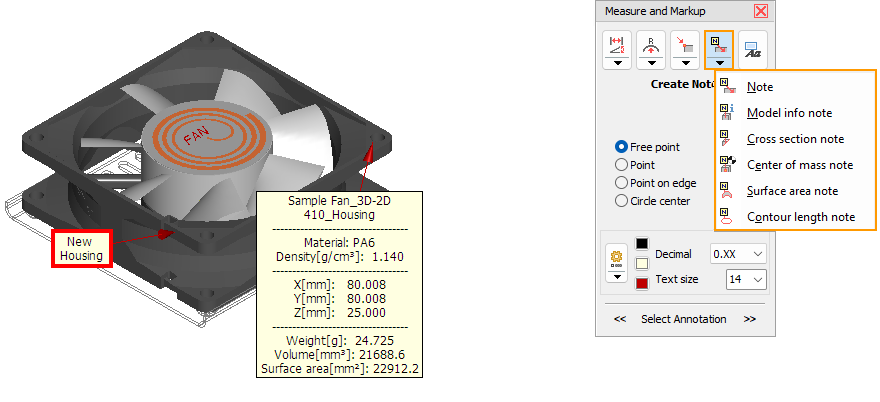
 Create Cross Section Note Create Center of Mass Note Create Surface Info Note
Create Contour Length Info Note
Create Note
Select a reference where the note should be attached
Free point
Select a free point on a surface as a reference.
Point
Select a vertex or reference point as a reference.
Point on edge
Select a point on an edge as a reference.
Circle center
Select a circle and use its center point as a reference.
Move the cursor to the point on the model where you want to attach the note.
Points under the cursor will be highlighted in light blue.
Click to add the note and enter the text of the note in the Create Note dialog.
 Tip
Tip
3D notes can be created without the Measure/Markup tool. Right click anywhere on the model and select Quick note.
 Create Model Info Note
Select the info units in which the info note is to be created. The info units will be changed and the values will be converted, if the units differ from the model units (mm or inch) specified in the 3D-Tool Preferences.
Select whether you want to generate an info note for a model or a part.
Move the cursor to the point on the model or part where you want to attach the note.
Models or parts under the cursor will be highlighted in light blue. Click to add the note.
A note for models with the following information will be created:
- Name or the model
- Dimensions of the model in X, Y, and Z.
- Weight of the model: Only if all parts of the model have a material assigned with the
 Information tool.
 - Volume and surface area of the model.
A note for parts with the following information will be created:
- Name or the model and name of the part
- Dimensions of the part in X, Y, and Z.
- Weight of the model: Only if the part has a material assigned with the Information tool.
- Volume and surface area of the part.
If a model contains parts with open edges the weight, volume, and surface area are marked with the information that these values might be incorrect. Volume information and therefore weight information is only reliable for closed parts and models. Open edges and twisted planes will distort the volume calculation and could lead to incorrect results. This is most likely to happen when importing IGES files.
 Create Cross Section Note
Activate the Cross section tool.
Move the cursor on the section of the part where you want to attach the note.
The section under the cursor will be highlighted in light blue. Click to add the note.
A permanent red section line is created on the part. A note with the following information will be created on the section line:
- Name or the model and name of the part
- Number of segments
- Length of the section line
- Surface area of the sectioned part
 Create Center of Mass Note
Select whether you want to create a center of mass note for a model or a part.
Move the cursor to the point on the model or part where you want to attach the note.
Models or parts under the cursor will be highlighted in light blue. Click to add the note.
A note is created at the center of mass with the coordinates of the center of mass of the model or part. A center of mass can only be created for models and parts if a material has been assigned to each associated part.
For more information on assigning materials, see the 3D Mode > 3D Tools > Model-Info > Assign Materials chapter.
 Create Surface Area Note
Move the cursor on the surface where you want to attach the note.
The surface under the cursor will be highlighted in light blue and the surface area will be shown.
If necessary, adjust the size of the surface by changing the Surface tolerance angle.
To add a permanent Surface area note, click on the surface.
The surface gets a red outline and a note with the surface area is created.
 Create Contour Length Note
Automatically
Move the cursor on the surface where you want to attach the note.
The surface under the cursor will be highlighted in light blue and the total length and number of contours belonging to the surface are shown. The detected contours depend on the position of the mouse pointer on the highlighted surface.
If necessary, adjust the size of the surface by changing the Surface tolerance angle.
To add a permanent contour length note, click on the area highlighted in light blue.
The contour gets a red outline and a note is created with the contour length and the number of contours.
Manual edges
Move the cursor on the edge for which you want to get the contour length.
Edges under the cursor are highlighted in light blue.
By clicking on the highlighted edge, the edge is added with its length and changes its color to green. Additional edges can be added for the contour length note by clicking on them.
Complete the manual contour selection by Create Note.
The edges get a red line on it and a note is created with the contour length and the number of contours.
 Note
Note
Press [Esc] to cancel the selection.