Activation and Licensing
Run 3D-Tool and use the 3D-Tool license dialog to activate a 3D-Tool License, request a Trial License, or start 3D-Tool as Free Viewer.
 Reactivation After Changing Computers
Run as Free Viewer
Without a valid License Key or Trial Key, 3D-Tool can only be used as Free Viewer with limited features.
 Note
Note
The Free Viewer can be downloaded separately from our website: www.3D-Tool.de. The Free Viewer can be used to view the small, easily sent 3D-Tool DDD files.
License Activation
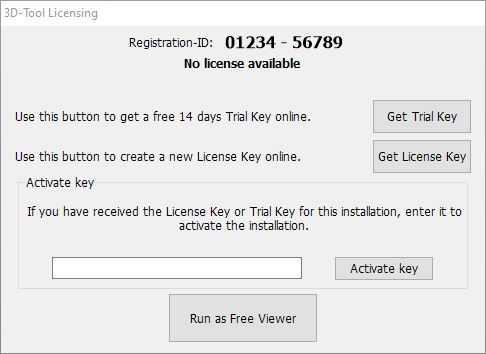
Request a License Key
For each license you order, you will receive a License Certificate with an Authorization Key on it. After starting 3D-Tool, click Get License Key in the license dialog and enter your Authorization Key. Next, enter the e-mail address to which you want the License Key to be sent. 3D-Tool will connect to the 3D-Tool website, your license data will be checked, and within 60 minutes you will receive the License Key by e-mail. Requesting a License Key this way requires an active Internet connection.
If your computer does not have an Internet connection or the connection fails, you can obtain a License Key by e-mail to team@3d-tool.de or by fax. To do so, please provide the following:
- The Registration-ID from the 3D-Tool license dialog.
- The Authorization Key from the 3D-Tool License Certificate.
- The e-email address to which you want the License Key to be sent.
The processing of a request by e-mail can take up to two business days
Activation with the 3D-Tool License File
The e-mail with the Licensing Key has a license file (license.dat) attached. Saving this license file in the 3D-Tool installation directory, will make 3D-Tool available to all user accounts on the computer.
Activation with the License Key
After receiving the License Key, enter it in the license dialog, and click on Activate Key. Now 3D-Tool can be used. You must enter the License Key separately for each user account on the computer.
Note
A 3D-Tool Single User License may only be used on a single computer. A License Key will work only on the computer for which it was requested. If the computer is replaced or newly setup, you have to request a new License Key. The previous 3D-Tool installation may not be used any more and has to be deleted or uninstalled.
Reactivation After Changing Computers
If you replace the computer or newly install the operating system, you have to request a new License Key. See License Activation above for further instructions.
Activating an Upgrade
If you have ordered an upgrade and received the new License Certificate run 3D-Tool, select the Options tab and click Licensing in the Licensing group. The 3D-Tool license dialog is displayed. See License Activation above for further instructions.
Activating an Update
After you have ordered an update and received the new License Certificate, download and install the newest version of 3D-Tool from our website www.3D-Tool.com. See License Activation above for further instructions.
14 Day Trial License
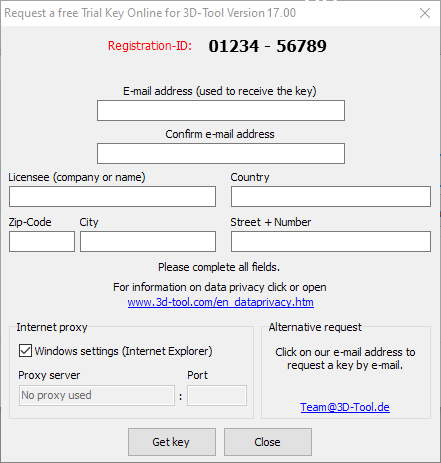
Obtaining a Trial Key
To try all features of 3D-Tool, a 14 Day Trial License can be requested once. Run 3D-Tool and click Get Trial Key in the licensing dialog. Next enter your e-mail address and contact information, and click Get key. 3D-Tool will connect to the 3D-Tool website, your request will be checked, and within 60 minutes you will receive the Trial Key by e-mail.
If your computer does not have a connection to the internet or the connection fails, you can obtain a Trial Key by e-mail or fax. To do so, please, provide the following information:
- The Registration-ID from the license dialog.
- The e-mail address to which you want the Trial Key to be sent.
- Your contact information (company, address, and contact person).
Note
The Trial Key will only work on the computer for which it was requested. Only one Trial Key can be requested online. If you need further Trial Keys, please send us an e-mail.
Activating the Trial Key
After receiving the Trial key, enter it in the license dialog and click on Activate Key to activate 3D-Tool for the 14 day trial period. To start, select a license for the current session: Basic, Advanced, or Premium. Only the respective features and interfaces will by available during the session. That way you can try the 3D-Tool version you intend to buy.
Note
The 3D-NativeCAD Converter is a discrete application and will work regardless of the license selected for a 3D-Tool session.