Arrange and Delete Parts
Delete, combine, move, and sort the parts in the Model Tree.
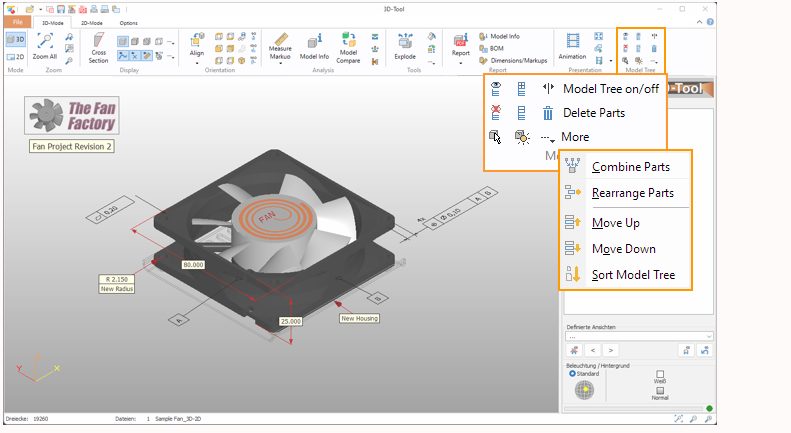
The functions to arrange and delete parts are located in the Model Tree Group of the 3D-Mode tab.
 Show All
Show all models, assemblies and parts.
 Hide All
Hide all models, assemblies and parts.
 Pick Part
To select one single part, just click on the part on the model. To select multiple parts, press and hold the mouse button, then marquee select the parts by selection rectangle.
 Expand All
Expand all models and assemblies in the Model Tree. To expand a single model or assembly, click on the plus symbols in the Model Tree.
 Collapse All
Collapse all models and assemblies in the Model Tree. To collapse a single model or assembly, click on the minus symbols in the Model Tree.
 Highlight Selection
Highlight the parts and assemblies selected in the Model Tree in red.
 Model Tree on/off
Show or hide the Model Tree and the side panel.
 Delete Parts
Delete all parts and assemblies selected in the Model Tree.
 Combine Parts
Combine all parts selected in the Model Tree to one part. The original names of the parts and their sectioning will be lost. If a model or assembly is selected, all of its parts will be combined.
 Rearrange Parts
Move the parts selected in the Model Tree to an existing or new assembly or model that can be specified in the following dialog:
- Move to existing assembly or model
Select the assembly or model in the list, and click OK. - Move to new assembly
Select the position of the new assembly in the list, and click on New assembly. The new assembly will be created. The name of the assembly can be changed through a slow double-click on the name or with the Rename button. Click OK to move the selection to the new assembly. - Move to new model
Click on New model and the new model will be created. The name of the new model can be changed through a slow double-click on the name or with the Rename button. Click OK to move the selection to the new model.
 Move Up
Moves the selected model, assembly, or part one position up in the Model Tree.
 Move Down
Move the selected model, assembly, or part one position down in the Model Tree.
 Sort Model Tree
Sort the parts in the Model Tree. Only the parts of the active model will be sorted by default.
Select For all parts and models to extend the sorting to all models in the Model Tree.
You can sort by:
- Number of triangles
- Volume
- Volume of boundary box
- Number of open edges,
- Part name.
Selecting Direction will let you decide if the parts will be sorted upward or downward.
Rename parts creates new continuing element names after sorting. Caution: Old names will be lost.
 Note
Note
To consistently sort the parts in the model tree, the assemblies of the models must be flattened.