The File Tab
Use the File tab to load, save, publish files, and create print-outs or picture files. Additionally, a list of recently used files is shown.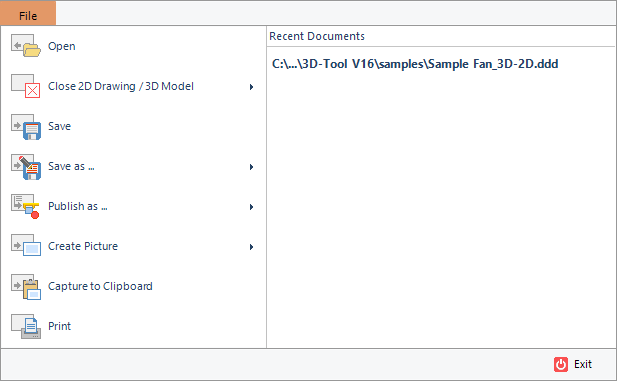
 Open
Open
Open 3D-models and 2D-drawings. You can open multiple files by selecting them in the file open dialog.
[Detailed description]
 Close 2D Drawing / 3D Model
Delete the 3D and/or 2D content that is currently loaded.
 Save
Save
Save a 3D model or 2D drawing. If the original file format is available, the file will be saved under its original name and format. Otherwise, you will be asked to choose a file name and format.
 Save as ...
Save a 3D model or 2D drawing under a new name or file format. Choose the model or drawing you want to save from the list.
 Publish as ...
Publish all currently loaded 3D models and/or 2D drawings.
Choose the desired type of publishing:
- Publish 3D-Tool File (*.ddd)
Save all 3D and 2D content to a DDD file for the 3D-Tool Viewer or the 3D-Tool Free Viewer. - Publish Viewer
Save all 3D and 2D content together with the 3D-Tool Viewer as a executable EXE file. - Publish 3D-PDF (*.pdf)
Publish all currently loaded 3D models as 3D-PDF file for the Adobe Reader or other 3D-PDF capable readers.
Further information can be found in the chapter Publish and Save.
 Create Picture
Create an image of the current view or any available Custom View. Choose the desired picture format:
- Create PNG [Detailed description]
Create an image in the PNG file format. - Create JPG [Detailed description]
Create an image in the JPG file format. - Create BMP [Detailed description]
Create an image in the BMP file format.
 Capture to Clipboard
Select and copy a section of the screen to the Clipboard.
Click the screen, hold the mouse button, and marquee select the desired section.
To copy the complete screen just click the screen.
Afterwards the picture can be pasted from the Clipboard into other applications.
You can adjust settings for the capture function in the Preferences:
Options tab > Preferences group > Preferences > Print/Picture/Capture
 Print
Print
Print the current view or any available Custom View.
Further information can be found in the chapter Print and Create Pictures.
 Exit
Exit
Close 3D-Tool.
 Notes
Notes
- The functions to save and publish files are not available with the Free Viewer and 3D-Tool EXE files.
- The functions to open and close files are not available with 3D-Tool EXE files.
- To ease the editing of STL files, the "Save" function will automatically and without warning update open STL files with the state present in 3D-tool. To avoid the automatic update of existing STL files, the "Save as …" function must be used.