 Create Picture
Create a BMP or JPG image of the current view or any available Custom View. To do so, a number of options, including a preview, are available.
To create pictures, click Create Picture in the File tab or the icon in the Quick Access Toolbar

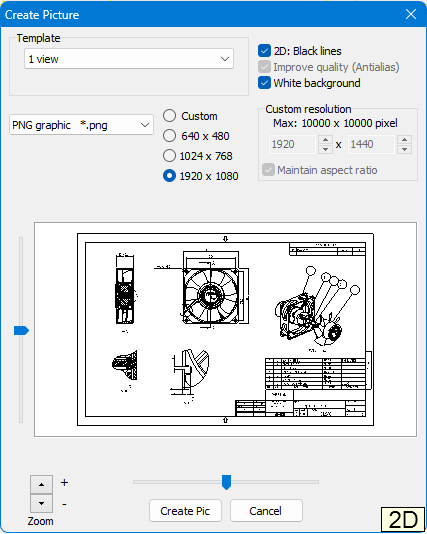
Template
Select a pre-defined template for the picture. You can select the number and type of views to be used.
Depending on the Template, further controls are available near the preview picture to adjust the position and zoom of the models and drawings.
Include file info (in 3D mode only)
Add the file path and name of a 3D-model in the lower right corner of the picture. The file information option is available only when one model is loaded or when the Model-Info tool is activated and only one model or its parts are selected in the Model Tree.
2D - Print black lines (for 2D-drawings only)
Print all lines and text of 2D-drawings in black.
Improve quality (Antialias) (for 3D-models only)
Use Antialias when printing to smooth the edges. Antialias is only works with 3D-models.
White background
Do not show the (colored) background of 3D-models and 2D-drawings.
File type
From the drop down list, select the file format:
- PNG *.png
Creates a lossless PNG picture file - JPEG *.jpg
Creates a compressed JPEG picture file. The quality of the JPEG compression can be set in the Preferences:
Options tab > Preferences > Print/Picture/Snapshot - Bitmap *.bmp
Creates a lossless BMP picture file
Resolution
Select one of the pre-defined output sizes or activate Custom for a custom resolution. Unselect the Maintain aspect ratio option to set the picture width and height independently.
 Notes
Notes
- The maximum resolution depends on the graphics card and the operating system; therefore it could be less than 10000 pixels.
- Pictures of 10000x10000 pixels will use a lot of working memory.