 Print
Print
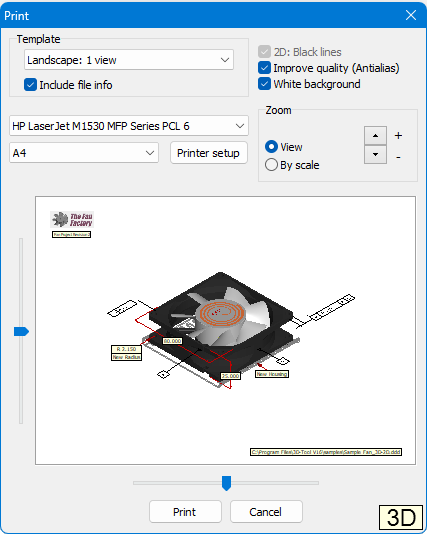
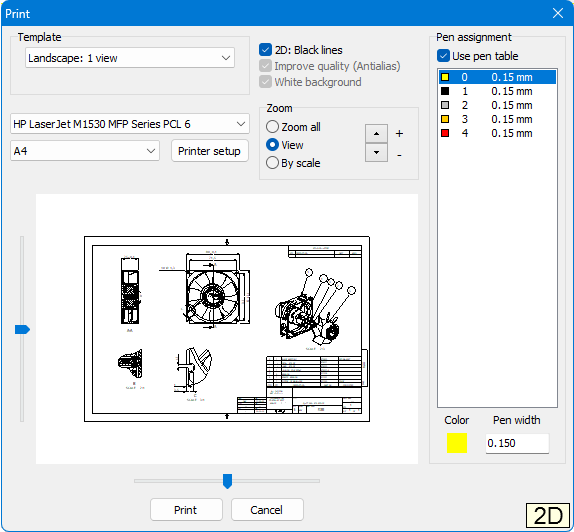
Print the current view or any available Custom View. To do so, a number of options, including a preview, are available.
To print views, click Print in the File tab or the icon in the Quick Access Toolbar.
Template
Select a pre-defined template for printing. You can select the orientation of the paper (horizontal or vertical) and the number and type of views to be used.
Include file info (in 3D-models only)
Add the file path and name of a 3D-model in the lower right corner of the print-out. The file information option is available when only one model is loaded or when the Model-Info tool is activated and only one model or its parts are selected in the Model Tree.
Printer and paper size
Select a printer and paper size from the two drop down lists.
Printer setup
Open the printer settings of the selected printer to make further adjustments.
 Note
Note
Selecting the horizontal or vertical paper orientation will not affect the format because the format of the Template selected in 3D-Tool will be used.
2D - Print black lines (for 2D-drawings only)
Print all lines and text of 2D-drawings in black.
Improve quality (Antialias) (in 3D-models only)
Use Antialias when printing to smooth the edges.
Transparent background
Do not print the (colored) background of 3D-models. When printing 2D-drawings, the background will not be printed unless the drawing is printed as Custom View within an accordant Template.
Zoom
- Zoom all: (in 2D-drawings only) Fit a drawing to the selected paper size.
- View: Print the current view.
- Scale: Define a scale for the print-out.
Depending on the Template and Zoom, further controls are available near the preview picture to adjust the position and zoom of the models and drawings.
Note
The Scale option is not available for views of models in  Perspective View or for templates containing Custom Views.
Pen assignment (in 2D mode only)
Assign different line thicknesses to the colors of the drawing for the print-out.
Use pen table (Default: Active)
Use the line weights given in the table. If the pen table is not used, the original line thicknesses stored in the file will be used for printing.
Note
If the option Use pen table is inactive, the line widths may cause poor readability when printing large format drawings on small paper sizes.