Rotate and Align Models
Use the following functions to rotate, fit and align the models in the display.
The functions to rotate and align the view are located in the Orientation group of the 3D-Mode tab.
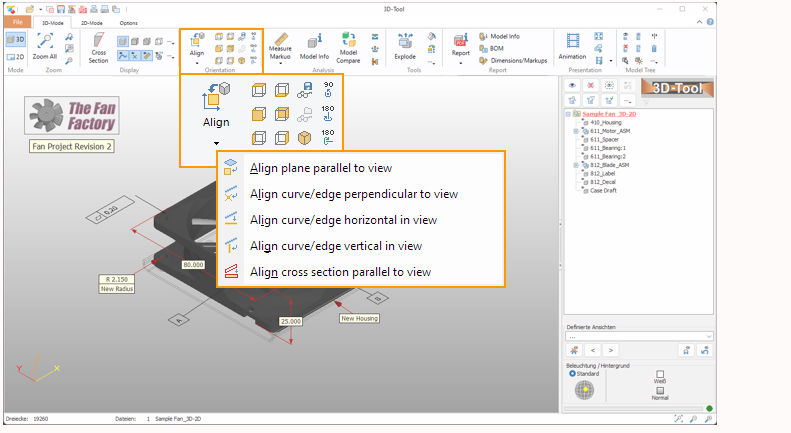
 Align View
Align the view to the X, Y and Z-axis of the coordinate system.
 Align plane parallel to view
SelectAlign plane parallel to view and move the mouse pointer over the model. Planes to align them will be highlighted in blue. Click to align the selected plane parallel to view.
 Align curve/edge perpendicular to view
SelectAlign curve/edge perpendicular to view and move the mouse pointer over the model. Curves/edges to align will be highlighted in blue. Click to align the selected curve/edge perpendicular to view.
 Align curve/edge horizontal in view
Select Align curve/edge horizontal in view and move the mouse pointer over the model. Curves/edges to align will be highlighted in blue. Click to align the selected curve/edge hoizontal in the view.
 Align curve/edge vertical in view
Select Align curve/edge vertical in view and move the mouse pointer over the model. Curves/edges to align will be highlighted in blue. Click to align the selected curve/edge vertical in theview.
 Align cross section parallel to view
With activated Cross Section tool, click to align the selected cross section plane parallel to the view.
 Enter View Angle
[More information]
 Front View
Rotate the view to front view, and fit all visible parts in the display.
 Back View
Rotate the view to back view, and fit all visible parts in the display.
 Left View
Rotate the view to left view, and fit all visible parts in the display.
 Right View
Rotate the view to right view, and fit all visible parts in the display.
 Top View
Rotate the view to top view, and fit all visible parts in the display.
 Bottom View
Rotate the view to bottom view, and fit all visible parts in the display.
 3D View
Rotate the view to the standard 3D view, and fit all visible parts in the display.
 Rotate Horizontal 180°
Rotate the view horizontally by 180 degrees.
 Rotate Vertical 180°
Rotate the view vertically by 180 degrees.
 Rotate Normal 90°
Rotate the view by 90 degrees around the screen center.
 Save Orientation
Save the current zoom and orientation of the view. To restore the view, use Load Orientation.
 Load Orientation
Restore a previously saved zoom and orientation of the view. To save views, use Save Orientation.