Presentation
Use the following features to present your models, Custom Views and animations.
The presentation functions are located in the Presentation group of the 3D-Mode and 2D-Mode tab.
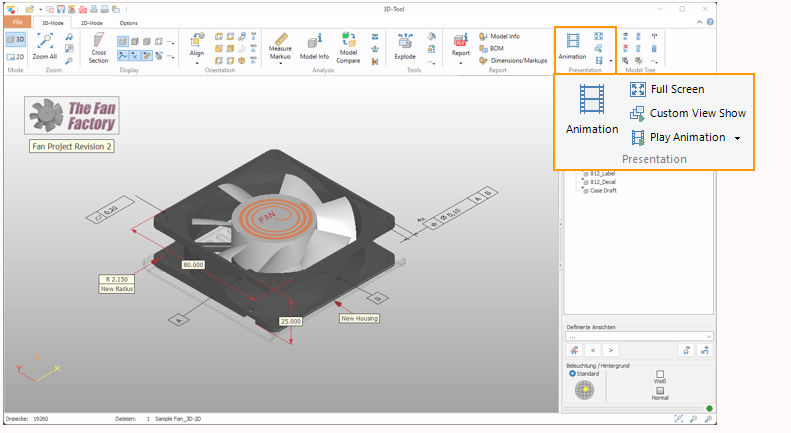
 Animation
The Animation tool creates animations from Custom Views.
Further information can be found in the chapter 3D-Mode > 3D-Tools > Animation.
 Full Screen
Switch the display to full screen mode. The 3D-Tool user interface will be hidden so that only the 3D-model or the 2D-drawing is displayed.
In full screen mode, right-click into the display to access often needed functions.
To exit the full screen mode press [Esc] or via right-click into the display > Exit full screen.
 Note
Note
During the full screen mode, the Hardware acceleration is not available and the display will respond slower than usual.
 Custom View Show
Start a slide show of all available Custom Views. All Custom Views will be displayed in order. Stop the Custom View Show by pressing Esc or by clicking into the display.
 Start Animation
Start an animation, e.g. Rotate right, and animations created with the Animation tool. Stop the animation by pressing Esc or by clicking the display.