Change Lighting, White Background
Change the lighting position to improve the contrast and show details more vividly. Use a white background for screenshots.
The functions to change the Lighting Position and to switch to a White background are located in the right info panel below the Model Tree.
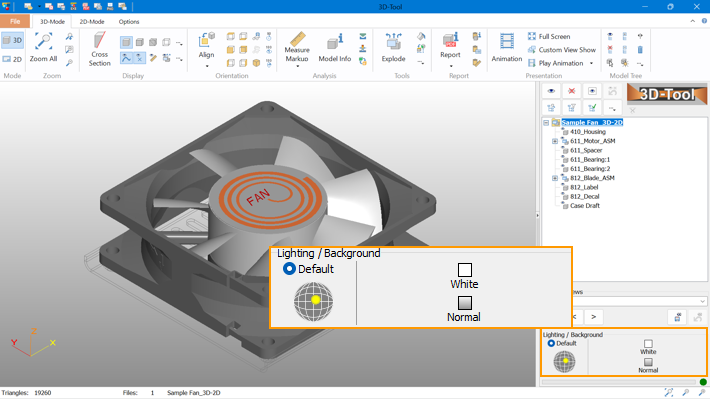

Change the Lighting Position
Adjust the lighting position by dragging the yellow light point to any position or choose Default.
Switch to White Background
Left of the lighting, you can switch between Normal and White background. This is useful:
- To take screenshots of the current view.
- If a model is displayed as wire frame or hidden line and the lines are difficult to see with the normal background.
 Note
Note
The color and the gradient of the normal background can be adjusted in the 3D-Display Options group of the Options tab.