Advanced / Premium Import Settings
During the Advanced and Premium import the Import Settings can be used to optimize the quality and speed of the display.
3D-CAD files are triangulated during their import into 3D-Tool. For graphical display the 3D-models are divided into a mesh of numerous triangles. To do so, the Import Settings dialog is displayed when opening the following files:
- STEP, IGS, VDA, SAT, PARASOLID and JT files
- Native files of CATIA, Creo, ProE, Autodesk Inventor, Autodesk Navisworks, I-Deas, UG/NX, Rhino, Solid Edge and SolidWorks.
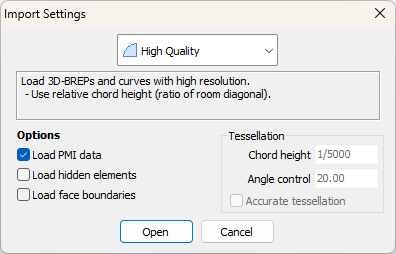

Import Settings
The parameters Chord Height and Angle Control affect the accuracy/fineness of the mesh and thus:
- The number of triangles
- The quality of the display.
- The display speed of the models.
- The size of the file when published.
- The loading time.
 Notes
Notes
- The default values of the import setting can be adjusted through:
Options tab > Preferences group > Preferences > 3D-Import Advanced/Premium - Depending on the import settings used some imprecision may appear in measuring and when analyzing the 3D models.
 High Quality (Default)
The High Quality setting uses the relative chord height based on the model's bounding box diagonal to control the accuracy when importing 3D modes. The chord height is set to 1/5000 of the diagonal, and the angle control is 20 degrees.
Usually, these values will assure decent results. They are a compromise between quality and speed. However, large and complex models can make it necessary to increase the values, e.g. if the display speed of the model is too slow. Also, if complex models are shared, the capacity of the recipient's computer should be kept in mind. Most computers should be able to display up to one million triangles.
 Medium Quality
The Medium Quality setting uses the relative chord height based on the model's bounding box diagonal to control the accuracy when importing 3D modes. The chord height is set to 1/2000 of the diagonal, and the angle control is 30 degrees.
Compared to the High Quality setting these values can reduce the data amount up to 90%. For very big and complex models this will speed up the display considerably yet will still provide enough accuracy for basic measurement. But some inaccuracy is possible when measuring and analyzing small details.
 Low Quality
The Low Quality setting uses the relative chord height based on the model's bounding box diagonal to control the accuracy when importing 3D modes. The chord height is set to 1/600 of the diagonal, and the angle control is 35 degrees.
Compared to the High Quality setting these values can reduce the data amount up to 90%. For very big and complex models this will speed up the display considerably yet will still provide enough accuracy for basic measurement. But some inaccuracy is possible when measuring and analyzing small details.
 Custom Settings
The Custom Settings allow to enter individual values for chord height and angle control. Additionally, the Accurate Tessellation option can be enabled to generate so-called watertight models.
Chord height (Default: 0,05 mm / 0.002 inch)
The chord height defines how far the generated Mesh for model visualization may deviate from the original surface. The smaller the value, the more precise the model is represented - however, this significantly increases the number of generated triangles and the overall data size.
Angle control (Default: 20.0)
Angle control defines the maximum angle allowed between adjacent triangles in the mesh. A smaller angle leads to a more precise representation of the model but also results in a higher number of triangles. Valid values are between 0 and 90 degrees.
Accurate Tessellation (Default: disabled; only available for 3D-Tool Premium)
When enabled, this option imports the 3D model using an organic tessellation method. This generally produces watertight models but also increases the number of generated triangles.
 CAD Graphical Data - 3D-Tool Premium
The 3D-data created with professional CAD software may already contain a mesh of triangles to be used for graphical visualization of the models. The CAD Graphical Data setting will use this mesh to display the models in the 3D-Tool Viewer. If the model does not contain graphical data 3D-Tool will automatically use the High Quality setting.
Import Options
Load PMI data (Default: active)
Load available Product Manufacturing Information (PMI) when opening native CATIA, UG/Siemens NX (from NX 6), Pro/Engineer, Creo, SolidWorks and JT (from (10.2) - files.
The STEP AP242 file format may also contain PMI data also. But to load the PMI data the CAD Graphical Data setting must be used.
Read hidden entities (Default: inactive)
Import hidden elements with the imported files.
Load face boundaries as curves (Default: inactive)
Additionally to the faces of the model, load the boundaries of the faces will be loaded as curves. In the display the curves will be shown as outlines of the faces illustrating the constructional design of the model.
Read Configurations
SolidWorks models can contain so called Configurations. To set a configuration for conversion, click the Read Configurations button.