 Scale
Scale
Use the Scale tool to change the size of models, assemblies, and parts.
The Scale tool is located in  More in the Tools group of the 3D-Mode tab.
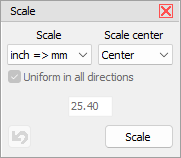
Model Tree Selection
Select a model, an assembly, or a part in the Model Tree.
Scale
From the drop down, list choose the scale:
- mm => inch: Millimeter to Inch.
- inch => mm: Inch to Millimeter.
- Custom: Enter a custom scale factor.
Scale center
From the drop down list, choose the center of the scale:
- Center: The common center of the selected elements.
- Origin: The origin (0,0,0) of the coordinate system.
- Minimum: The common minimum (MinX,MinY,MinZ) of the selected elements.
- Maximum: The common maximum (MaxX,MaxY, MaxZ) of the selected elements.
Uniform in all directions
Scale uniform in x, y and z. Deactivate this option during the Custom scale to enter different values for x, y, and z .
Scale
Execute the scaling.
 Undo
Undo
Undo the last scaling.
 Note
Note
The transformation of parts (move, rotate, scale, mirror) can lead to major changes in Custom Views that have already been created.